
This blog post is part 1 in a series about converting spreadsheet data into JSON and indexing it into Sitecore Search. For part 2, click here.
This year, I worked on a large migration of a energy provider’s website from Sitecore XP to SitecoreAI. This migration involved a complete redevelopment and redesign and carrying over some unique integrations.
One of those integrations was a custom spreadsheet uploader.
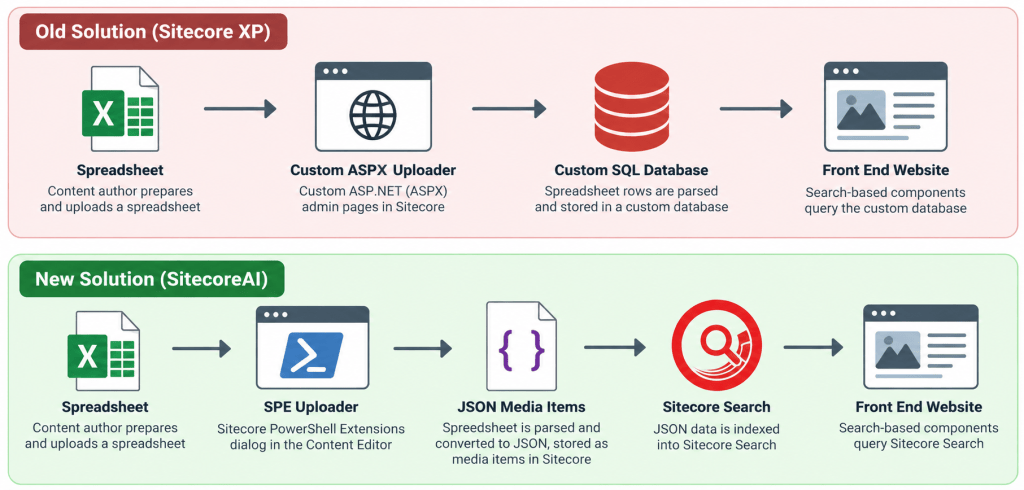
The original solution built around that was a set of custom ASP.NET (aspx) admin pages bolted onto Sitecore. A content author would open a custom page, upload a spreadsheet, and the code would parse it and insert the rows into a custom SQL database. That worked fine when it was built. It didn’t survive two things, though:
Moving to SitecoreAI, a fully cloud managed version of Sitecore, took custom aspx pages off the table entirely. It’s advised not to deploy your own ASP.NET pages into a SitecoreAI environment, so the whole “custom admin page” upload experience had to be rebuilt some other way. That’s what pushed me toward a Sitecore PowerShell Extensions script instead. SPE dialogs run inside the content editor, so there’s no separate hosting surface to fight with.
Meanwhile, the custom database was showing its age for an unrelated reason: querying it was computationally heavy, and all of that spreadsheet data was ultimately meant to power search-based components on the front end; filterable directories, faceted lists, that kind of thing. Standing up (and continuously tuning) a custom database as the query layer in front of didn’t really make sense. Because our new solution was set to use Sitecore Search already, it was a no brainer to index the spreadsheet data in there instead.
So the rebuild had two real halves: replace the aspx upload/convert step with something that actually works on a managed host, and replace the custom database with Sitecore Search as the thing the front end queries. Here’s how both pieces came together.
Part 1: Input Spreadsheet, Output JSON Media Item
The first problem to tackle was the authoring UX. Content authors have a spreadsheet, need a way to upload it, and have it “just become” structured data in Sitecore, without a developer in the loop every time the file changes. Sitecore PowerShell Extensions (SPE) is the natural tool for this. It gives you a scripting environment plus dialog builders that run right in the content editor.
I decided on a spreadsheet type selection field, and then an upload field. The user selects which type of spreadsheet they’re uploading (contractors, vendors, etc.) and then uploads the spreadsheet document.
Receive-File has a -Path variant that writes the upload to a folder on the CM server’s disk, but SPE only allows that for a preapproved allowlist of folders, and on a managed cloud host, you typically can’t or shouldn’t patch that config or reach the server’s filesystem at all. That -Path upload just fails with a permissions error on those hosts.
The workaround was to use upload straight into the media library through the normal content-authoring upload path. From there I read the bytes out of that temporary media item into memory, delete the temp item immediately, and do all the parsing off the in-memory byte array. Nothing ever touches disk. If you’re writing any SPE script that needs to accept a file upload and might run on a SitecoreAI instance, this might be the pattern to use.
Once I sorted the upload out, I started working on parsing through the spreadsheets.
Challenge #1 – Parsing The Data
One issue I ran into immediately was parsing the spreadsheets without any available libraries. A locked-down managed host meant no adding EPPlus, ClosedXML, or the ImportExcel module to the solution. But it turns out you don’t need any of them an .xlsx file is just a zip archive of XML parts.
System.IO.Compression.ZipArchive plus System.Xml, reading workbook.xml, sharedStrings.xml, and each worksheet’s XML directly, gets you everything: sheet names, header rows, cell values, shared string lookups. CSV is even simpler, handled by Microsoft.VisualBasic.FileIO.TextFieldParser, which is already in the base class library.
Challenge #2 – Handling Big Spreadsheets
The first version I built loaded each worksheet part into a full [xml]/XmlDocument and ran an XPath // query over it. That was fine for a few hundred rows but it falls over on a sheet with 150,000+ rows, because it was building an XmlElement/XmlAttribute object graph for the entire sheet before it even looked at a single cell, then walked the whole tree with a wildcard query on top of that.
The fix was switching to System.Xml.XmlReader in forward-only streaming mode, pulling out one <row> element at a time with ReadOuterXml() and parsing just that small fragment. Instead of one enormous tree, you get ~150,000 tiny, short-lived ones, dramatically cheaper and faster. Same idea for the shared-strings table, which on a big sheet can be just as large as the row data itself (every unique model number, address, etc. only gets stored once and referenced by index).
Challenge #3 – Deciding What Data Matters
These spreadsheets weren’t each just one clean sheet. They often had several tabs, some of which are “Read Me,” “Fine Print,” or other instructional sheets that weren’t important to import. Rather than hardcoding sheet names, I created a config table within the script that listed the “type” of known/useful column names, and fuzzy-matches each sheet’s header row against that list. A sheet is only converted if at least one of its headers matches something in the known-columns list for the selected type; everything else gets skipped automatically. Importantly, the known-column list is only used to decide relevance. The actual JSON keys come from whatever the sheet’s real headers say, so the importer doesn’t break when a real file adds a column the spec doesn’t mention, or names its sheet after something that changes every month.
Challenge #4 – Converting Specific Column Data
I soon ran into a logical issue that I wanted to nip in the bud sooner rather than later. A lot of the columns across the sheets had different standards for how data should be interpreted, whether it be different delimiters for lists, different indicators for true/false values, or data from multiple columns that should be combined. I decided to create three generic config tables to handle these cases:
- Boolean fields: A list of column names whose values get converted into true or false. This included all possible values that would indicate when a cell was true (such as “Yes”, “Y”, “X”, “true” etc.). In all other cases it’s considered false.
- Array field delimiters: A list of column names mapped to the delimiter that that column uses to denote multiple items in the data set (such as “;”, “|”, “&” etc.).
- Combined array fields: This was the more interesting one. Spreadsheets sometimes spread a single concept across many columns instead of one: a column per county, a column per service offered, a column per product, each holding a truthy marker for whether that row applies. Rather than exporting those as many separate boolean fields, each config entry folds a named set of source columns into one JSON string array containing just the labels of the columns that were truthy for that row, then drops the individual source columns.
None of this was spreadsheet-specific; they’re generic patterns that scales to new data types without touching the transform logic itself.
Challenge #5 – Splitting Oversized Outputs
The final challenge I ran into with the spreadsheet conversion was ending up with huge JSON datasets for incredibly large spreadsheets. One spreadsheet I was working with specifically had over 200,000 rows! While my tool was able to handle this, trying to load the final JSON document took too long and often timed out completely. I decided the best course of action was to set a maximum number of objects (rows) per JSON document, and automatically create new media items, continuing off where the last one ended.
For good measure, I also added in an automatic publishing feature that published the parent folder where all the JSON data lives every time the script runs.
Once I solved that final issue, I was out of the woods and my script was accurately importing and converting the data into JSON. I was then ready for the next step which was to ingest that data into Sitecore Search!
You can check out my next post in this series to see how I indexed this data into Sitecore Search by clicking here. See you there!
Until next time,
Happy Sitecoring!


Leave a Reply